Stream Deck Chatbot Integration for Faster Live Chat
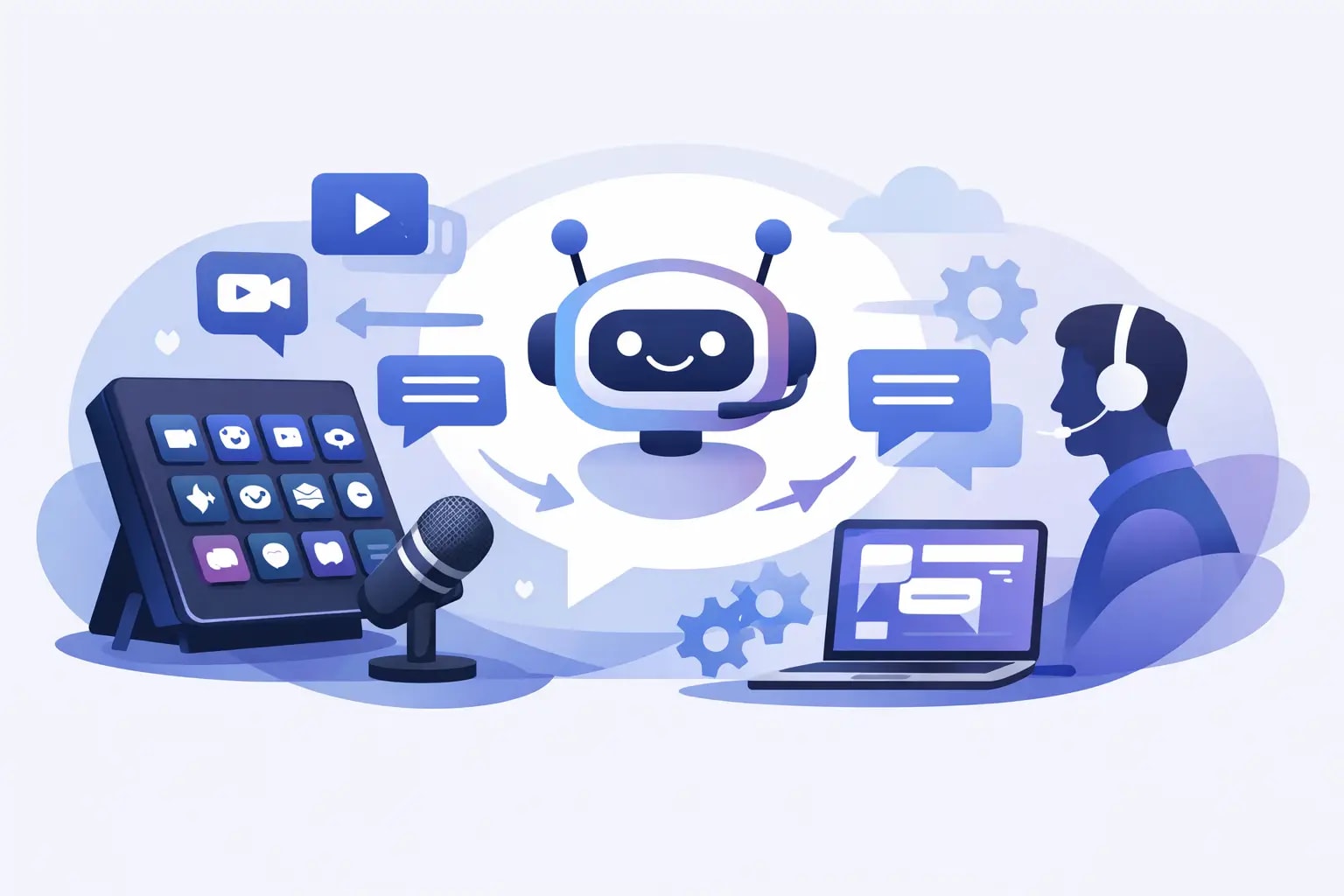
A quiet chat can make every extra tab feel like a liability. Stream deck chatbot integration puts the actions you need most on physical keys, so you can welcome viewers, trigger commands, manage chat, and keep your attention on the broadcast instead of your browser.
For Twitch and Kick creators, that speed matters. Live streaming is not a desk job where you can pause to find the right dashboard. You are playing, talking, reacting, reading chat, watching alerts, and protecting the tone of your community at the same time. A well-built Stream Deck setup gives your chatbot a front-row role without turning your screen into a control room.
Why Stream Deck Chatbot Integration Changes Your Workflow
Chatbots are useful on their own, but their real value shows up when their commands are available exactly when you need them. A Stream Deck turns repeated chat tasks into one-press actions. Instead of typing a command, switching windows, or trusting yourself to remember the right syntax mid-stream, you press a labeled key and move on.
That can mean posting your social command after a new viewer asks where to follow, launching a giveaway command when your stream reaches a milestone, or sending a quick reminder about your schedule before you sign off. The action is immediate, consistent, and visible only when you choose to use it.
The biggest gain is not just speed. It is presence. When you spend less time looking down at tools, you have more time to react naturally to the people who are actually watching. That makes the stream feel sharper, especially during busy moments where chat can move faster than your ability to type.
Build the Buttons Around Real Stream Moments
A strong Stream Deck chatbot integration should reflect how your stream actually runs. Do not fill every key because you have empty space. Start with the moments that repeatedly pull you away from content or conversation.
For most creators, the first page should cover the commands used during a normal live session: a welcome message, social links, rules, Discord or community information, current game details, and a clean end-of-stream message. If you run recurring segments, add a dedicated button for each one. A Just Chatting creator may need a topic prompt or poll command. A competitive gamer may need buttons for queue rules, rank information, or challenge redemptions.
The second page is where moderation and event tools belong. Keep it organized enough that you can use it under pressure. Buttons for enabling slow mode, follower-only chat, clearing repeated messages, launching a giveaway, or posting a sponsor disclosure should be easy to identify at a glance.
Use short labels and distinct icons. “RULES,” “POLL,” and “SLOW” are better than long descriptions that force you to read before acting. Color also helps. Red can signal moderation controls, green can mark community actions, and purple or blue can hold stream promotion. The goal is instant recognition, not a pretty control panel.
Give Your Most Important Commands Prime Placement
Your best keys are the ones you can reach without looking. Reserve them for actions that happen often or need a fast response. If you regularly welcome raids, post a shoutout, or turn on a chat restriction when a conversation gets heated, those controls should live on the main page.
Less frequent actions can sit one level deeper. This includes seasonal giveaway commands, special event overlays, and commands for games you only play once in a while. A good layout prevents accidental triggers while keeping high-value controls close.
Connect the Chatbot Before You Go Live
The exact setup depends on the chatbot and Stream Deck plugin you use, but the operating logic is the same. Connect your streaming account, authorize only the permissions required for your chosen actions, then assign chatbot commands or webhooks to individual keys. Test every button in a private session before putting it in front of your community.
Start with simple command outputs. Make sure a social command posts to the correct platform chat, a giveaway action reaches the right bot, and your moderation buttons affect the intended channel. If your setup supports variables, test those too. A command that inserts the current game, a viewer name, or a custom message can save time, but only if it behaves predictably.
Avoid setting up critical buttons five minutes before you go live. A missing permission, outdated token, or duplicated command can create a messy first impression. Build your layout earlier, run a test stream, and keep a backup way to access the chatbot from your browser until you trust the configuration.
Keep Access Controlled
A Stream Deck can make powerful actions easy, which is exactly why permissions deserve attention. Do not connect a bot account with broader moderation access than your workflow needs. If you stream with a moderator, producer, or shared PC, separate the controls they need from actions that should remain yours alone.
Be especially careful with commands that change chat settings, start paid or prize-based promotions, or post announcements. One-press convenience is valuable, but it should not eliminate your judgment. Put safeguards around anything that could confuse viewers or change the flow of chat in a major way.
Use Automation to Support Real Conversation
The best chatbot buttons do not replace your personality. They create more room for it. A repeated command can answer common questions, but your voice is what turns a first-time viewer into someone who comes back tomorrow.
Use your Stream Deck to handle the predictable parts of chat. Let the bot share your schedule, explain your commands, remind viewers about community rules, and provide links when asked. Then use the time you saved to respond to comments, call out great plays, and build running jokes with regulars.
This distinction matters when you are growing. Viewers can tell when a channel is running on canned messages alone. Timed promotions and automated reminders have a place, but they work best when they support genuine conversation rather than flooding the chat. If a message would feel repetitive to you, it will probably feel repetitive to the audience too.
For creators using growth tools alongside their live workflow, keep chatbot automation focused on clarity and community management. Visible momentum can bring more eyes to your channel, but retention comes from a stream that feels active, responsive, and worth staying for. Viewbot’s Stream Deck tools fit best as part of that larger operating system: faster controls for the moments when your attention needs to stay on camera.
Create Pages for Different Parts of the Stream
One fixed layout is rarely the best long-term solution. Your needs at the opening, middle, and closing of a stream are different. Create pages that match those phases.
Your pre-stream page can include scene changes, title reminders, a starting-soon message, and audio checks. Your live page should prioritize chat interaction, moderation, and recurring commands. Your closing page can handle thank-you messages, raid preparation, final social reminders, and an end-screen transition.
Event streams deserve their own page. If you are running a community night, tournament, launch-day stream, or long-form marathon, temporary commands can keep the experience organized without cluttering your everyday layout. Add the page for the event, use it hard, then remove or archive it when the event is over.
This approach also makes troubleshooting easier. If a command fails, you know which part of the workflow it belongs to. You are not searching through dozens of unrelated keys while chat waits.
Review What You Actually Press
After a few broadcasts, your Stream Deck will tell you what is worth keeping. Commands you hit constantly should become easier to reach. Buttons you never touch should be removed, moved, or replaced. Your setup should evolve with your content instead of becoming another dashboard you avoid.
Pay attention to friction. Did you miss a raid because the shoutout button was buried? Did you post the same social command too often because it was too convenient? Did moderation controls make it easier to protect the chat without interrupting your momentum? Those answers matter more than having the most complicated setup.
A smart Stream Deck chatbot integration is not about automating every second of a broadcast. It is about making the right action available at the exact moment it helps you stay present, keep chat under control, and give viewers a better reason to stay.