Dashboard Overview
Introduction
The dashboard is your central hub for managing everything on Viewbot.tv. From here you can add and remove channels, create and monitor bot instances, and keep track of your follower counts, all in one place.
Managing Channels
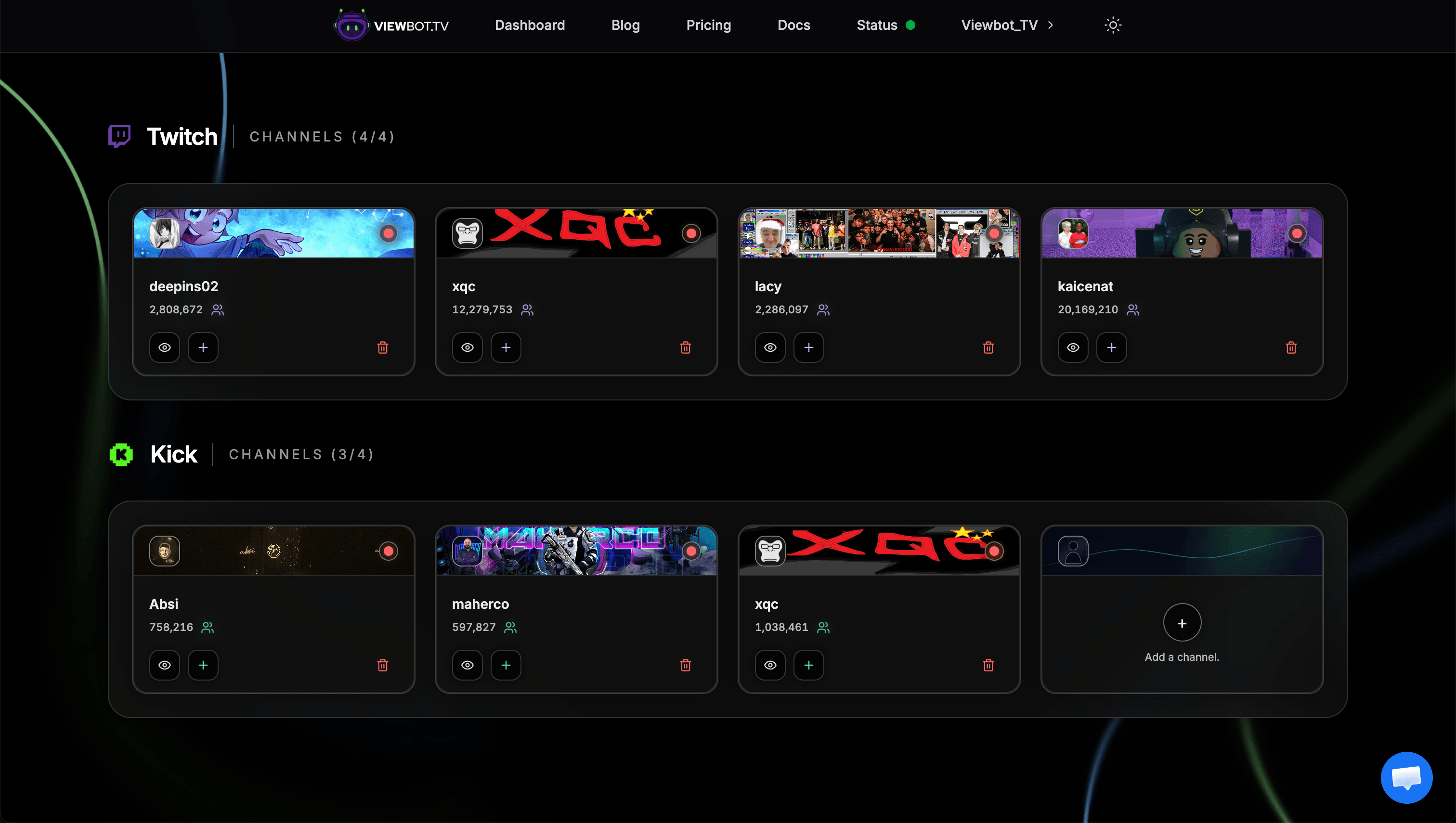
The dashboard allows you to add channels from both Twitch and Kick. You can have up to 8 channels per platform, for a total of 16 channels maximum.
Adding a Channel
To add a channel, simply enter your channel name and select the platform (Twitch or Kick). Once added, the channel will appear on your dashboard with its avatar and follower information.
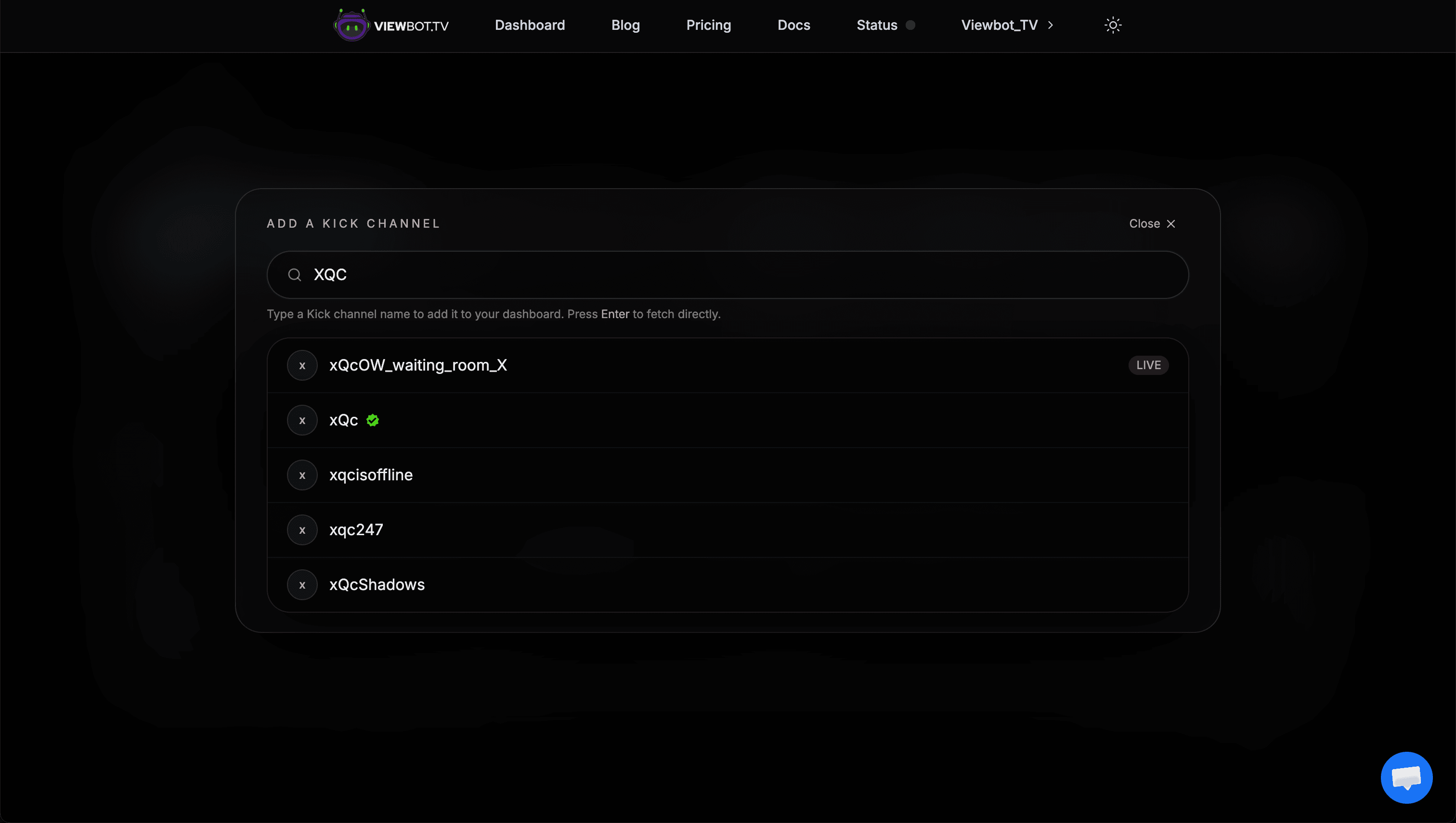
If your channel doesn't show up after typing the name, make sure to press Enter on your keyboard (both on desktop and mobile).
Deleting a Channel
You can remove a channel at any time from the dashboard. Deleting a channel will also stop any running instances associated with it.
Add Channel
Enter your channel name and select Twitch or Kick to add it to your dashboard.
Delete Channel
Remove a channel and all its associated instances from your dashboard.
Channel Cards
Each channel on your dashboard is displayed as a card with useful information at a glance:
- •Channel avatar: clicking it will redirect you directly to your channel on Twitch or Kick
- •Follower count: see your current follower information directly on the card
- •Running instances: a visual indicator shows if you have any active bot instances running
- •Platform badge: easily identify whether the channel is on Twitch or Kick
Bot Instances
From the dashboard you can create and manage bot instances for each of your channels.
Creating an Instance
Select a channel, choose the bot type you want to run, configure the parameters, and start the instance. Each instance runs independently, so you can have multiple bots running on the same channel at the same time.
Viewing Your Instances
You can check from the dashboard if you have an active instance on your channel. You can see the status of each instance, what bot type it is, and which channel it belongs to. Running instances are highlighted so you can quickly spot what's active.
Create Instance
Pick a bot type, configure it, and start it on any of your channels.
View Instances
Monitor all running and recent instances across your channels.
Follower Information
Your dashboard displays follower information for each of your channels. This lets you track your growth over time and see the impact of the Follower Bot directly from the main dashboard. No need to visit the platform itself.
Channel Limits
Each account can have up to:

8 Twitch channels

8 Kick channels
That's a total of 16 channels across both platforms.
Quick Links
Clicking on a channel's avatar will redirect you to its page on the corresponding platform. This is a quick way to check your live stream or channel page without leaving the dashboard.
Channel Redirect
Click any channel avatar to open your Twitch or Kick channel in a new tab.
Next Steps
Now that you're familiar with the dashboard, explore the individual bot guides to learn how to configure and use each bot effectively: